
If you’re having trouble screen recording or adding content in the Playback Health portal, it’s often caused by browser or system permissions being blocked (camera, microphone, pop-ups, or window controls).
This guide walks you through simple checks first, then how to reset and re-allow permissions.
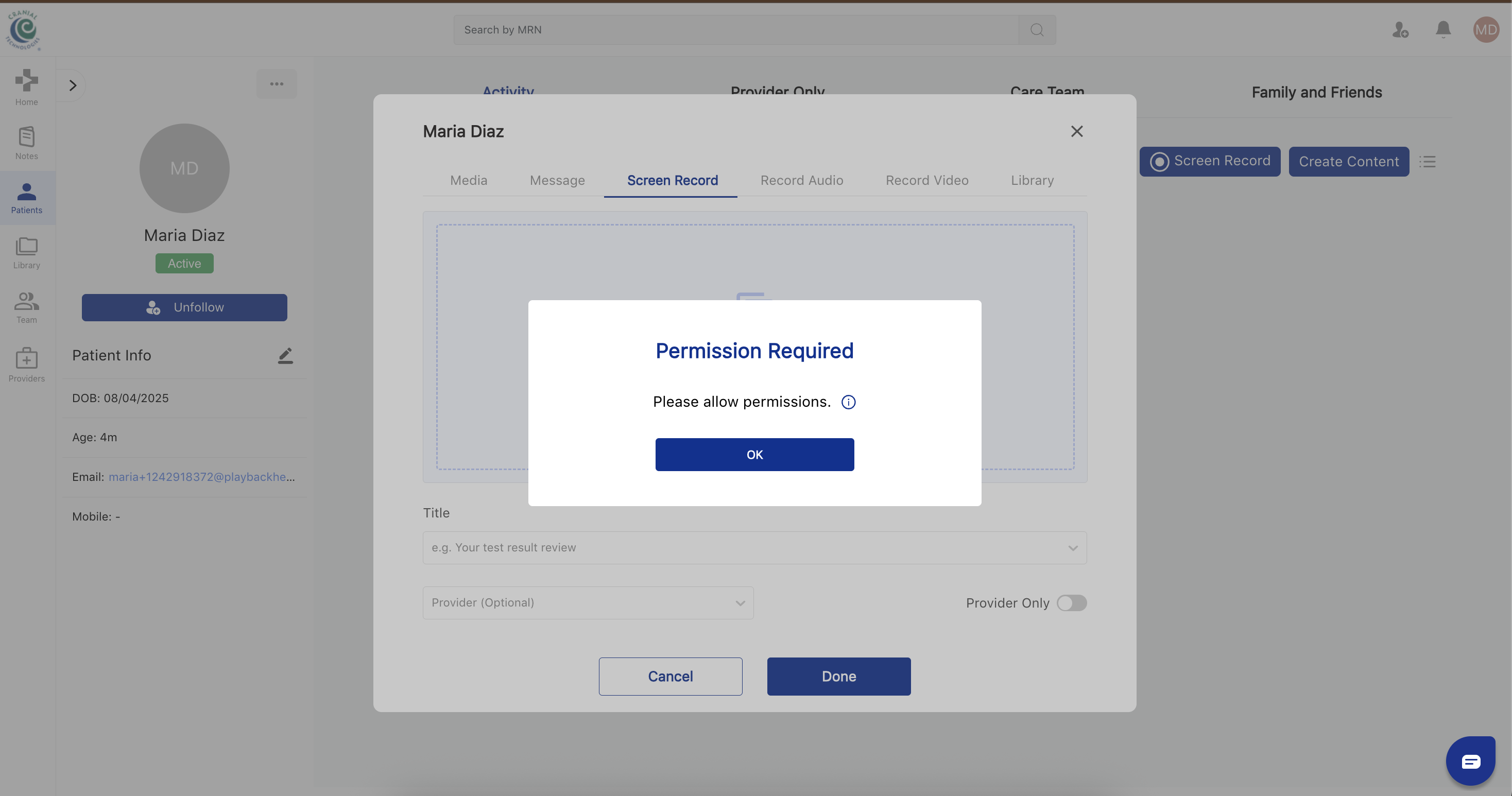
1. Quick checks before changing settings
Try these first:
Log out and back in
Log out of the Playback portal.
Close the browser tab.
Open a new tab, go back to the Playback portal, and log in again.
Try a different browser
If you usually use Chrome, try Microsoft Edge (or vice versa).
If it works in one browser but not the other, it’s almost always a browser permission issue.
If the issue continues, follow steps below:
2. Reset browser site permissions for Playback
A. Google Chrome
Open the Playback Health portal at provider.playbackhealth.com in Chrome.
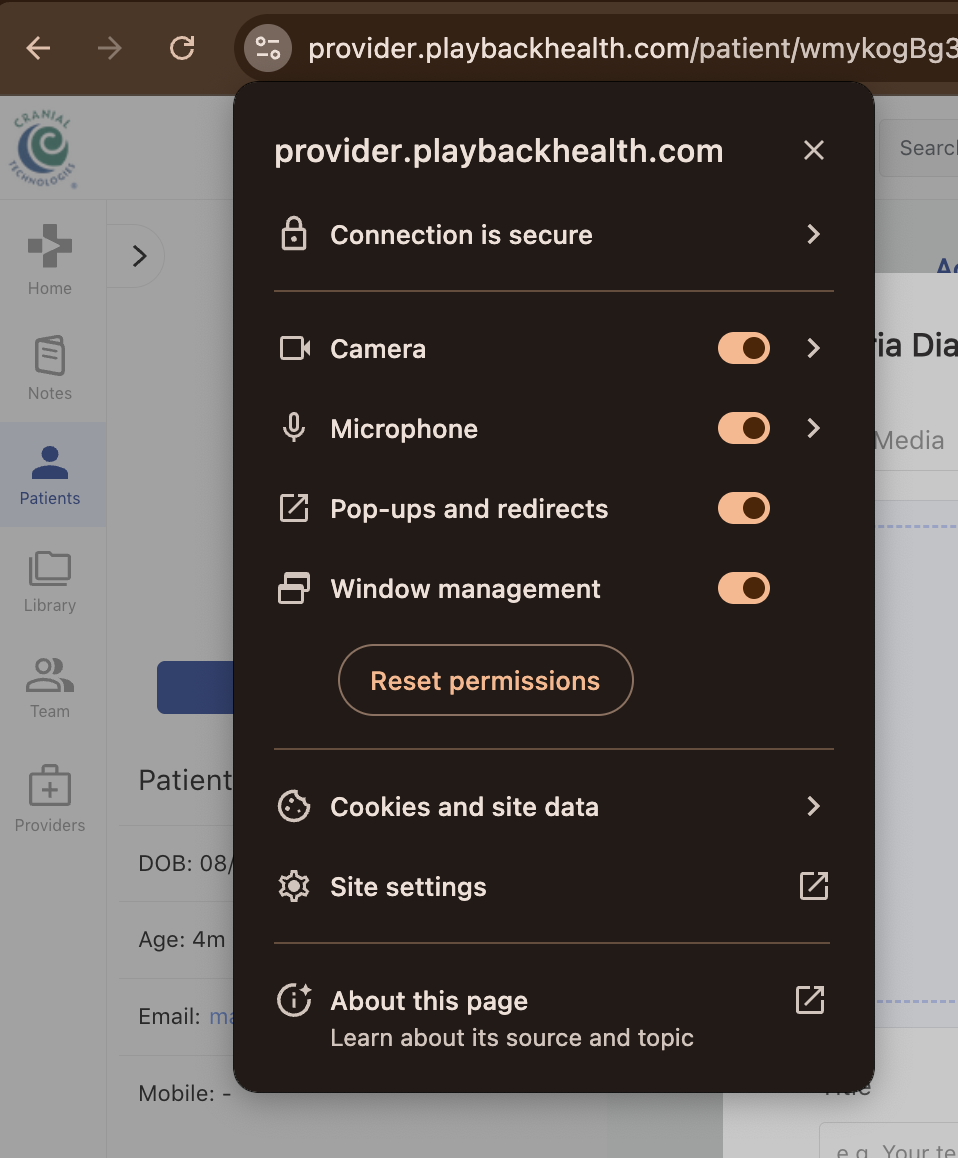
In the address bar, click the toggle icon to the left of the website address. (See screenshot below)
Click Site settings.
Under Permissions, set the following to Allow:
Camera
Microphone
Pop-ups and redirects
Automatic downloads (if applicable)
Window management (if you see this option)
Close the Site settings tab.
Refresh the Playback portal page and try recording again.
If prompted by the browser (“Allow use of your camera/microphone?”), click Allow.
B. Microsoft Edge
Open the Playback Health portal at provider.playbackhealth.com in Edge.
In the address bar, click the lock icon next to the website address.
Click Permissions for this site.
Set the following to Allow:
Camera
Microphone
Pop-ups and redirects
Window management (if shown)
Close the permissions panel.
Refresh the page and start a new recording.
When Edge asks to use your camera/microphone, click Allow.
Your site settings should look like this
3. Test screen recording again
Once you’ve updated permissions:
Open the Playback Health portal at provider.playbackhealth.com
Go to a patient's chart
Start a new recording.
When the browser prompts you to Allow camera/microphone/screen sharing, click Allow.
Confirm the recording timer is running.
If recording starts and you can save content, your permissions are now correctly configured.
Still having trouble?
If you’ve followed all the steps above and still can’t record or add content:
Take a screenshot of any error message you see (if possible).
Send a brief description of what happens when you try to record.
You can contact our team at support@playbackhealth.com, and we’ll be happy to help you troubleshoot further.